 Genesis Launcher
Getting started
When you first open Genesis Launcher, a short setup walks you through the basics. You can change every choice later in Settings.
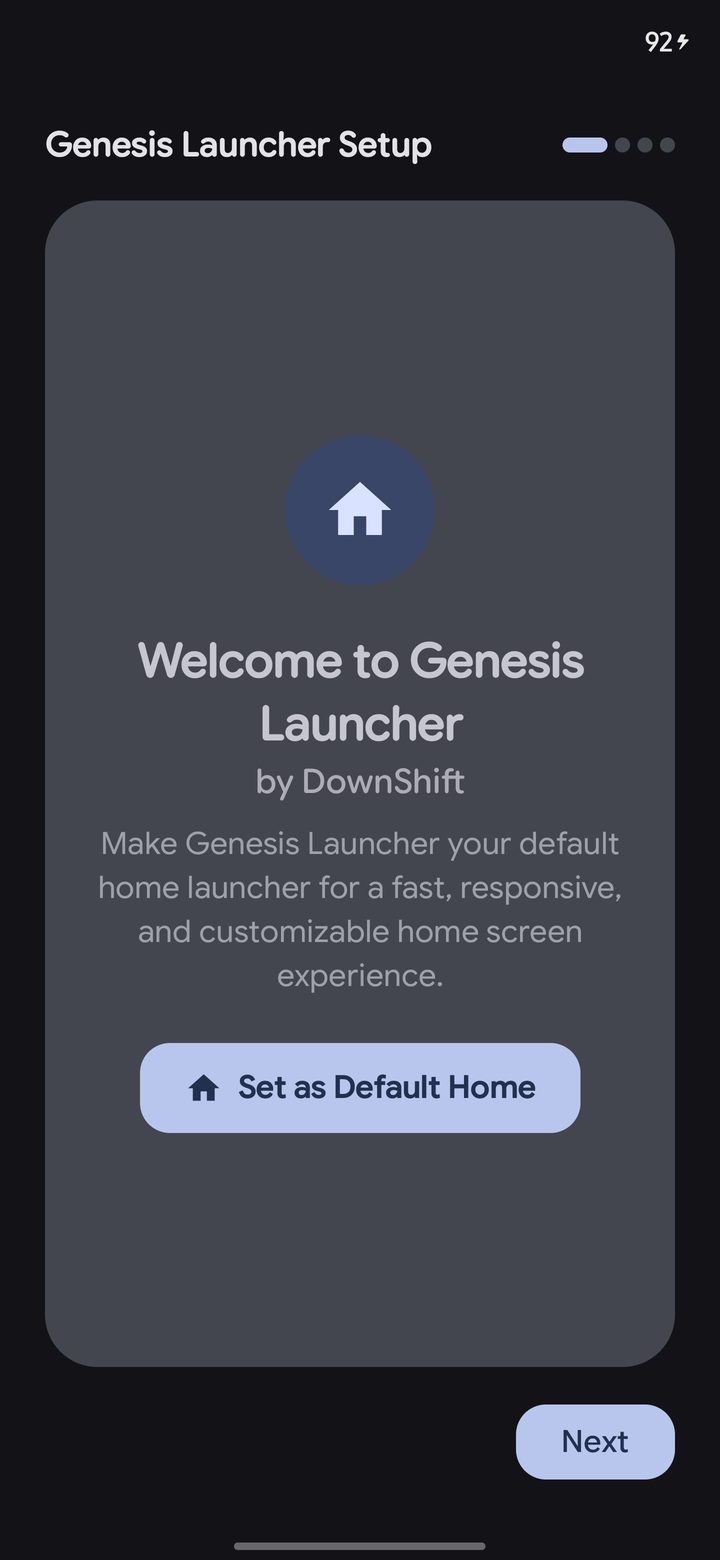
- Make Genesis your home app. Tap Set as Default Home and pick Genesis Launcher.
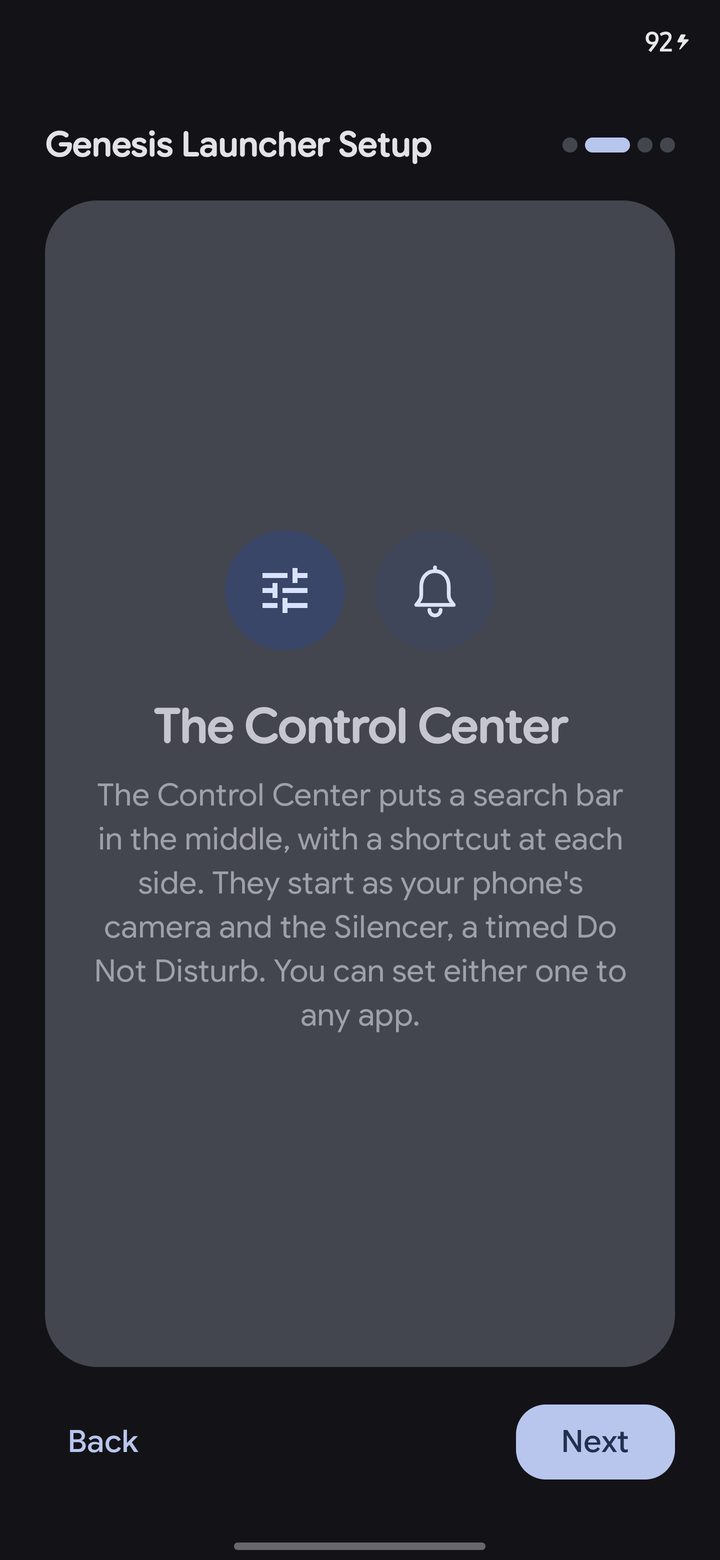
- Meet the Control Center. The bar under your dock has a search bar in the middle and a shortcut at each side. They start as your phone's camera and the Silencer, a timed Do Not Disturb. You can set either one to any app.
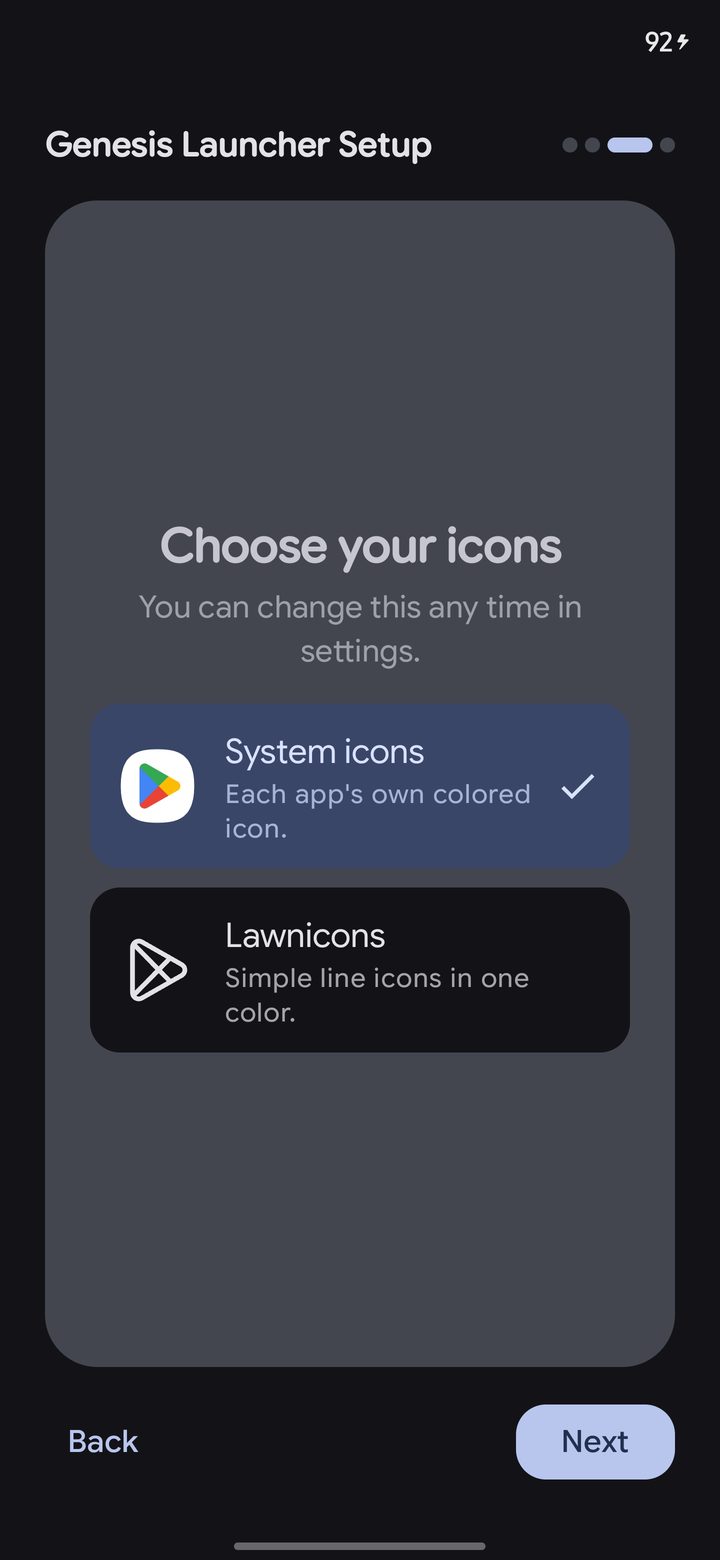
- Choose your icons: your apps' own icons, or Lawnicons, simple line icons in one color.
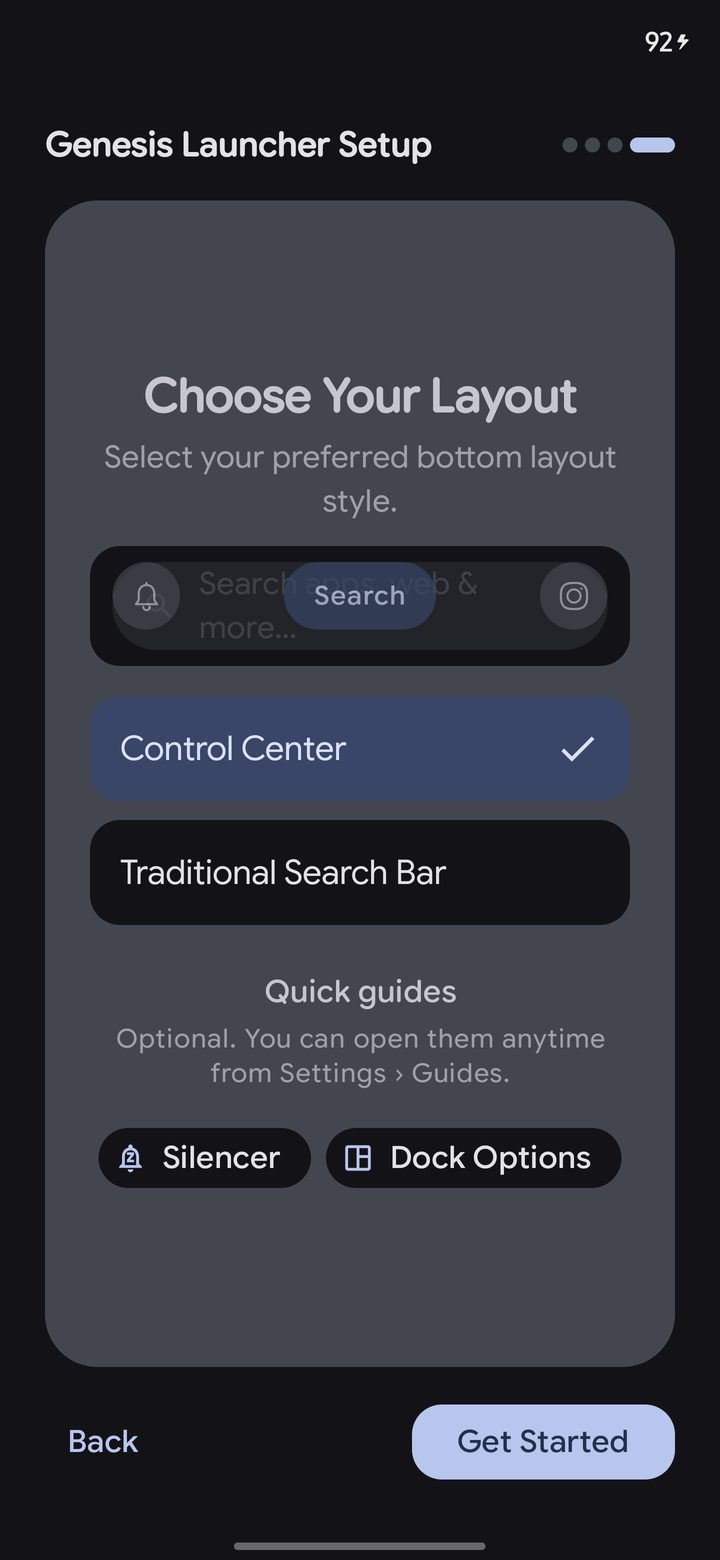
- Choose your layout: the Control Center, or a traditional search bar. The quick guides here open short tours, and they're always in Settings › Guides.